





How to Use RX Plus


(Applicable to the Master 6-in-1 Edition)
Purpose of this section: Help you successfully pair RX Plus with the S1, and route audio output to the device you need—such as a phone, camera, speaker, or mixer.
▶ Device Pairing & Connection
Step 1|Make sure the S1 is powered on and monitoring properly
-
Set the S1 side switch to Enhanced Dynamic mode [Middle] or Condenser mode [Right] to power it on
-
Put on the monitoring earphones
-
Speak into the S1 microphone and confirm that your voice can be clearly heard in the earphones
✅ Status check
-
Real-time vocal feedback is heard in the earphones
-
Audio is continuous, with no noticeable latency or dropouts
Step 2|Take out RX Plus and power it on
-
Press and hold the RX Plus power button for 2 seconds
-
The indicator light turns on, indicating that RX Plus has powered on successfully
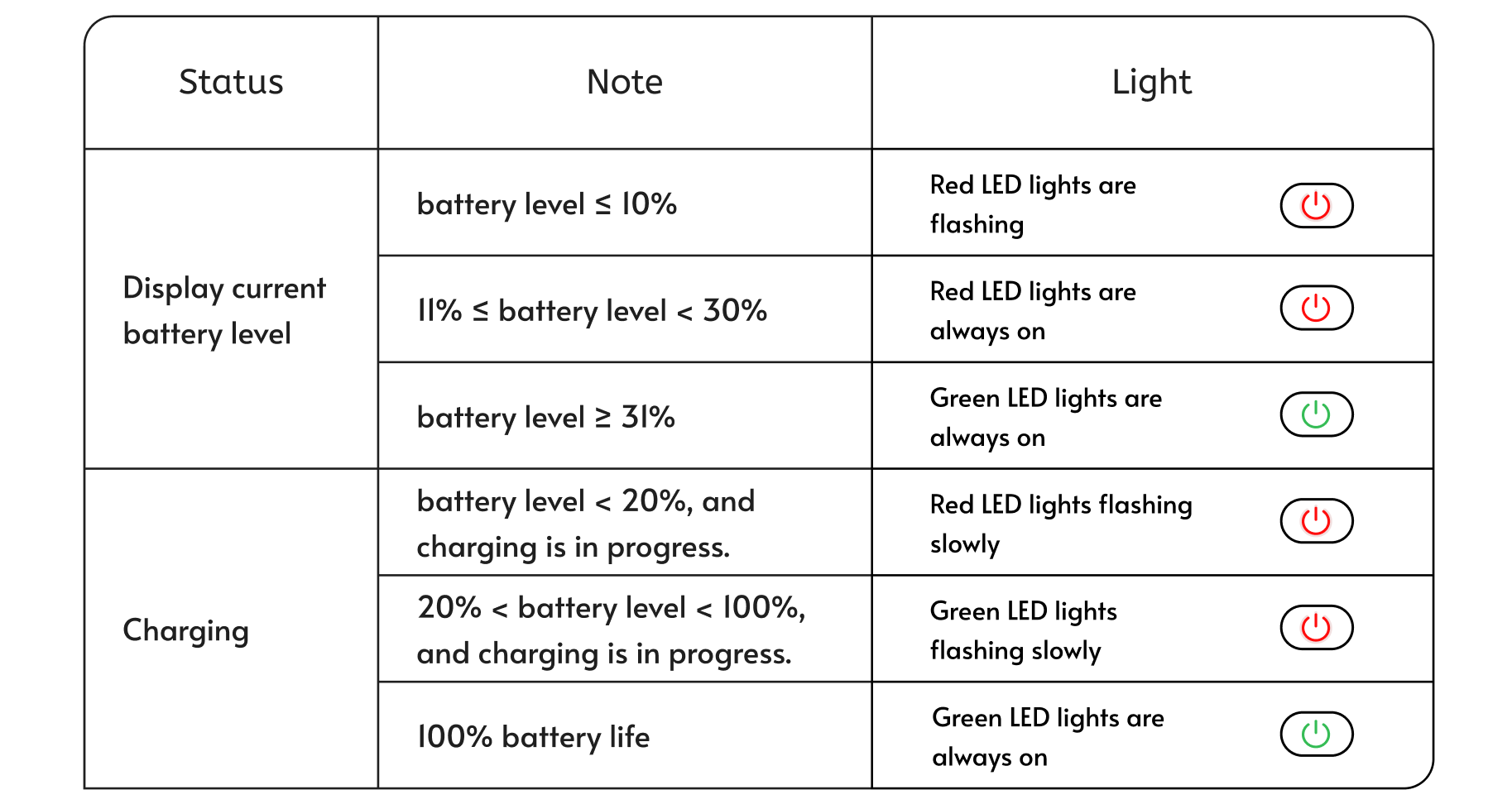
⚠ Note: If the indicator light does not turn on, please check whether the RX Plus has sufficient battery power.
Step 3|Pairing the S1 with RX Plus
Automatic Connection
-
If you purchased a bundle version or have previously connected an RX Plus, it will connect automatically.
-
Check the indicator light status:
-
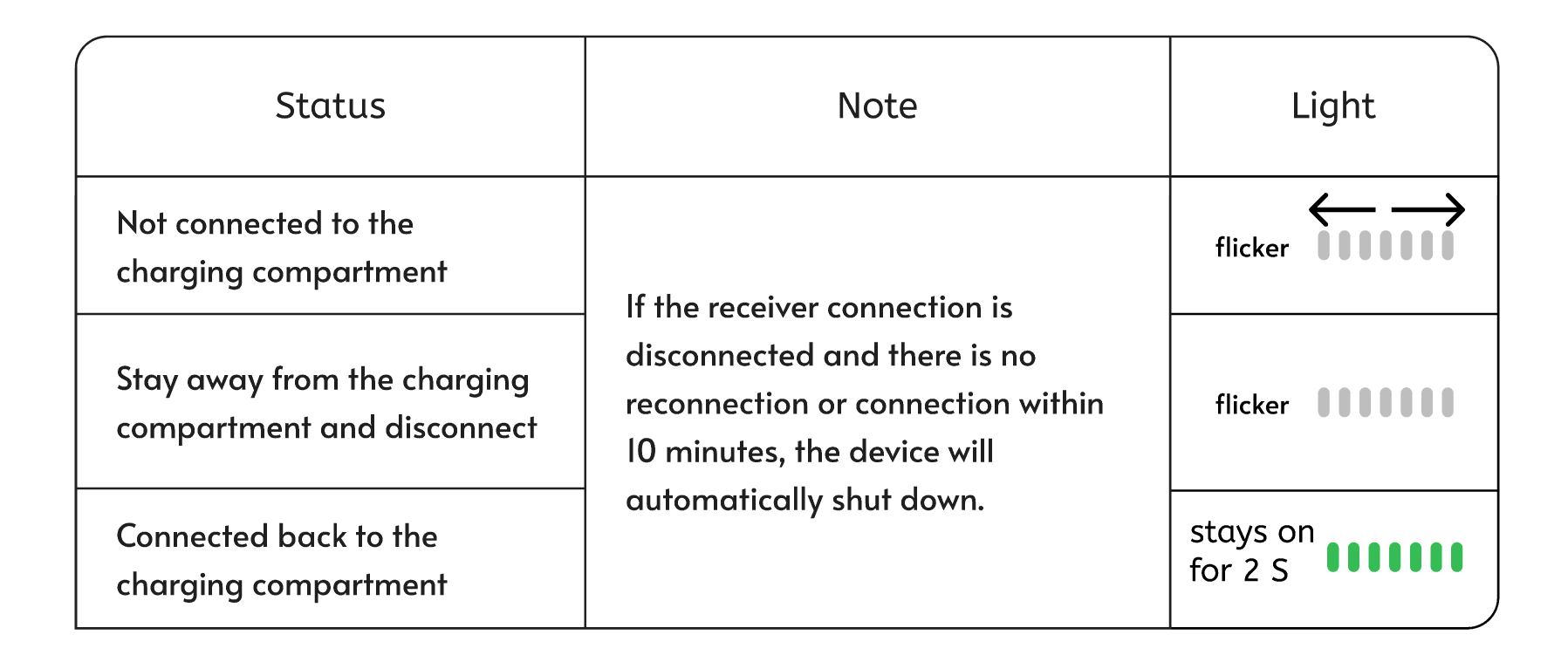
If the front indicator shows a real-time audio meter, the connection is successful
-
If the front indicator shows a white light expanding outward from the center, the device is not connected
-
Manual Initial Pairing
-
If you purchased RX Plus separately, or if the RX Plus has never been paired with the current S1, please complete the initial pairing first.
Initial pairing is required only once. After pairing, the RX Plus will connect automatically in the future.

-
Press and hold the RX Plus power button for 2 seconds to turn it on
-
Open the HISONG Link app
-
Go to Settings and find RX Plus Pairing (Path: Settings > Device > Pair RX Plus)
-
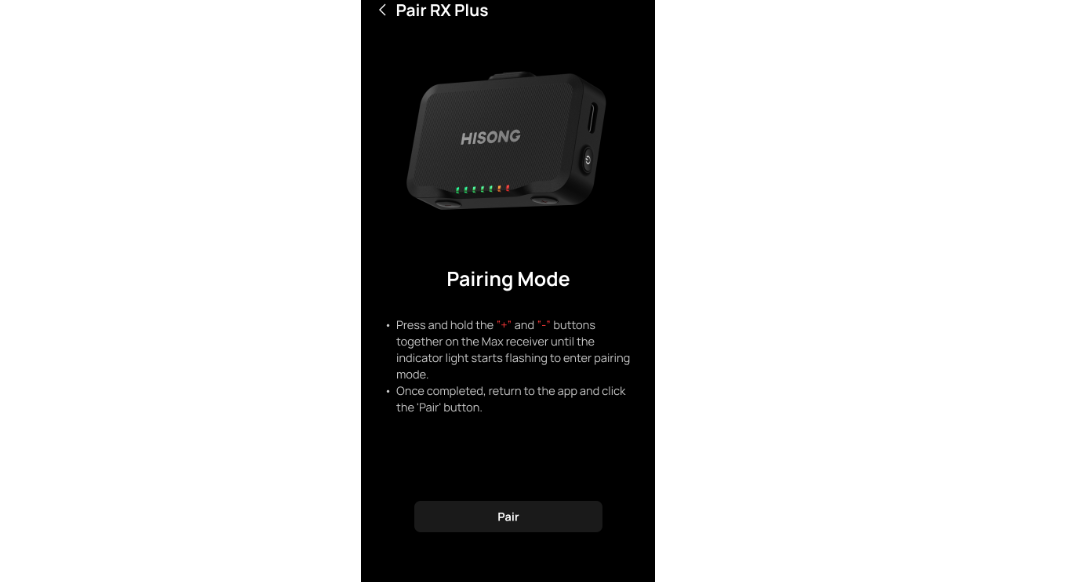
Follow the in-app instructions to complete pairing:
-
Press and hold the “+” and “–” buttons on the RX Plus at the same time until the indicator light flashes red and blue, entering pairing mode
-
In the app, tap “Pair”
-
-
Once pairing is successful, the RX Plus indicator will switch to real-time audio meter mode
After pairing is complete, the RX Plus will automatically connect to the S1 on subsequent use.
-
White light expanding outward from the center: Not connected
-
Real-time audio meter indicator: Successfully connected
Step 4|Select the RX Plus Output Interface
Choose the appropriate output interface based on your usage scenario:
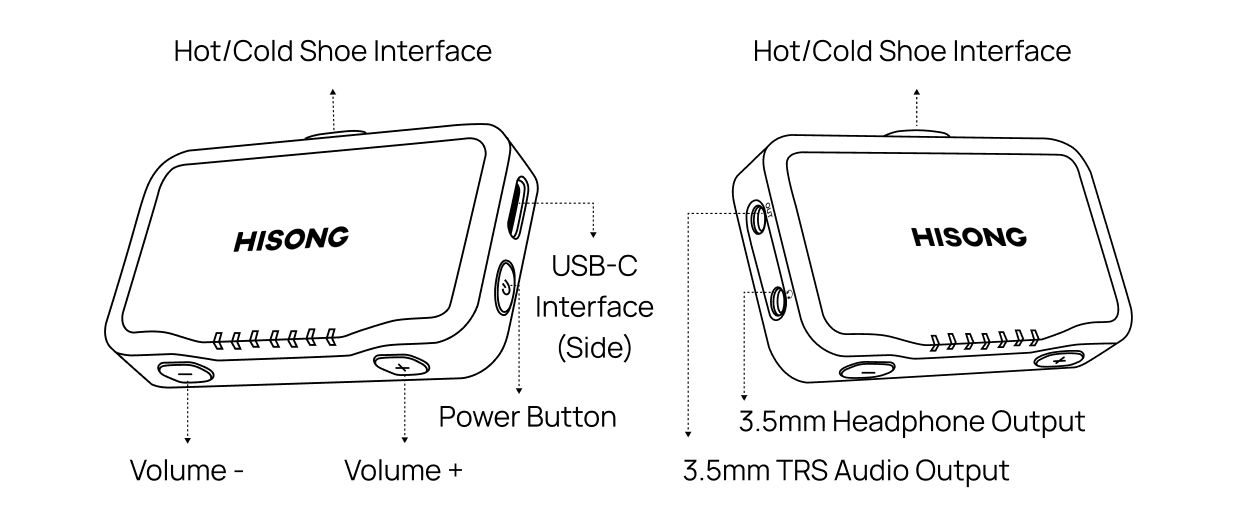
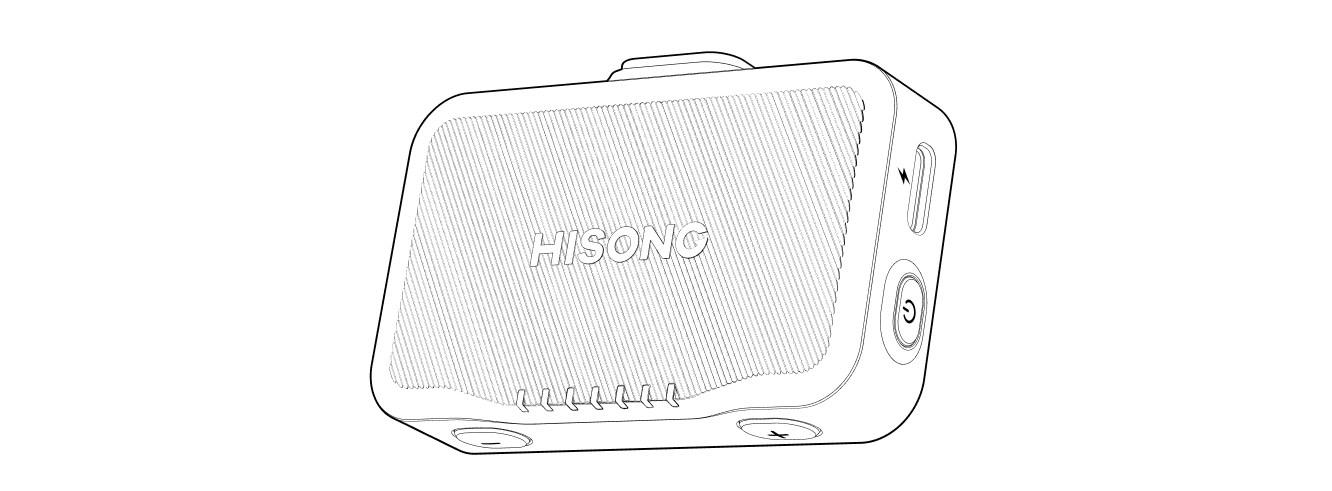
▶ USB-C Charging Port
-
Used to charge the RX Plus
-
Supports charging while in use
▶ 3.5 mm TRS (MIC)
-
Connects to a camera’s microphone input
-
Best for camera shooting, vlogs, and dual-camera recording setups
▶ 3.5 mm OUT
-
Connects to speakers, mixers, or external PA systems
-
Best for amplified singing and small live performances
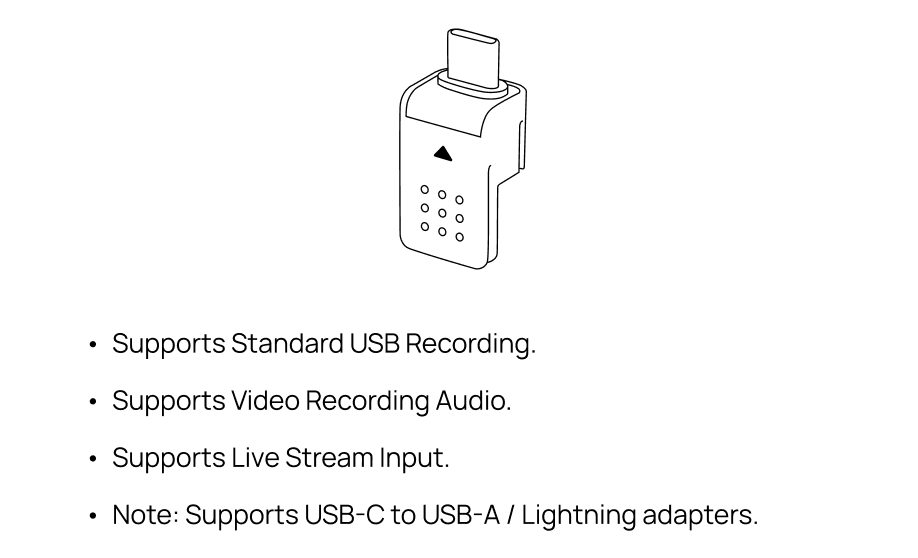
▶ USB-C Hot Shoe Connector (Best with Phones, Also Compatible with Computers)
-
Connects to phones / tablets / computers
-
Best for recording, live streaming, video shooting, and online meetings
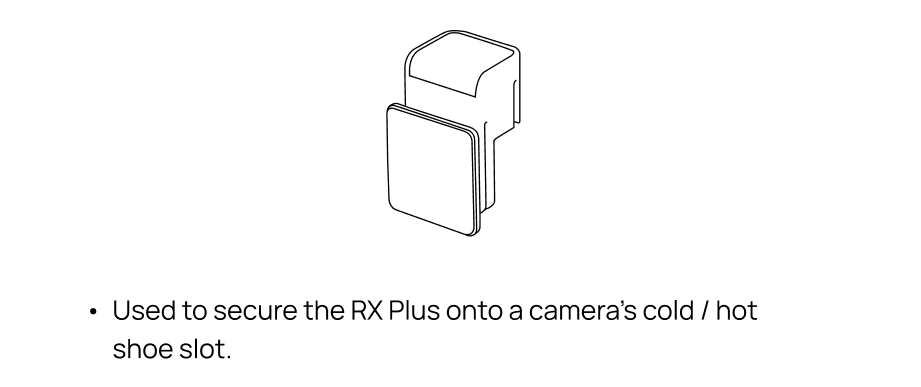
▶ 相机冷靴头
Tip 1: RX Plus is a USB-C wireless receiver and can be used with Lightning-port devices via a compliant adapter.
-
Prepare a Lightning-to-USB-C adapter or hub that supports USB audio
-
Insert the RX Plus into the adapter’s USB-C port
-
Connect the adapter to your iPhone / iPad
-
Once powered on, the RX Plus will automatically connect to the S1
-
Open any recording or camera app to start recording
Tip 2: RX Plus features multiple independent audio output interfaces. The 3.5 mm TRS (MIC), 3.5 mm OUT, and USB-C hot shoe connector are separate output channels that can output audio simultaneously without interfering with each other.
▶ Usage & Status Indicators
Device Connection Status Indicator Light
Device Battery Status Indicator Light
▶ Usage Scenarios (RX Plus)
RX Plus is designed to wirelessly output audio from the HISONG AirStudio S1 to different devices, supporting a wide range of creation and performance scenarios. Please choose the setup that best fits your needs.
Scenario 1|Camera Shooting (Audio Recorded Directly into Camera)
Best for: Vlogs, interviews, tutorials, performance videos, multi-camera shoots
-
Connect RX Plus to the camera’s MIC IN via the 3.5 mm TRS (MIC) output
-
Audio is recorded directly into the camera’s video file
-
Video and audio are synchronized, with no post-production syncing required
✅ You can:
-
Capture clear, stable vocals or instrument audio directly on the camera
-
Use the footage immediately after shooting, reducing post-production work
Scenario 2|Phone / Tablet / Computer Recording & Live Streaming (All RX Mini Functions Supported)
Best for: Live streaming, short-form video creation, meetings, remote content creation
-
Connect RX Plus to a phone / tablet / computer via the USB-C hot shoe connector
-
The system automatically recognizes it as an external audio input device
✅ You can:
-
Get high-quality audio input directly
-
Record or stream without an additional audio interface or wired microphone
Scenario 3|Amplified Singing / Live Performance
Best for: Outdoor singing, roadshows, small performances, impromptu shows
-
Connect RX Plus to a speaker or mixer via the 3.5 mm OUT port
-
The S1 handles audio capture and monitoring, while RX Plus handles amplified output
✅ You can:
-
Achieve stable amplified sound without cable restrictions
-
Sing and monitor in sync with a simple, reliable setup
Scenario 4|Shooting + DAW Synchronized Recording (Advanced)
Best for: Music creation documentation, arrangement / singing / performance recording
-
Use RX Mini for the shooting device
-
Connect the S1 to a computer via USB-C and record into a DAW simultaneously
✅ You can:
-
Use the DAW-recorded audio as the final audio in the video
-
Avoid post-production syncing or re-shooting
Scenario 5|RX Plus Multi-Device Simultaneous Output (Advanced)
Best for: Hybrid setups involving filming, amplification, or live streaming at the same time
-
The RX Plus 3.5 mm TRS (MIC), 3.5 mm OUT, and USB-C hot shoe connector can operate simultaneously
-
Multiple devices receive the same audio signal at the same time
-
Complete both creation and content capture in one workflow
✅ You can:
-
Use RX Plus alone to achieve camera recording + on-site amplification at the same time
-
Handle multiple audio outputs with one system, reducing equipment clutter
▶ Common Issues & Quick Troubleshooting
Q: RX Plus is connected, but there’s no sound from the external device. Why?
-
Confirm that the correct port is used (camera input vs speaker input)
-
Check whether the external device volume is turned on
Q: The indicator light is on, but audio is intermittent. Why?
-
Make sure the distance between the S1 and RX Plus is not too far
-
Avoid environments with strong Wi-Fi signals or heavy interference


