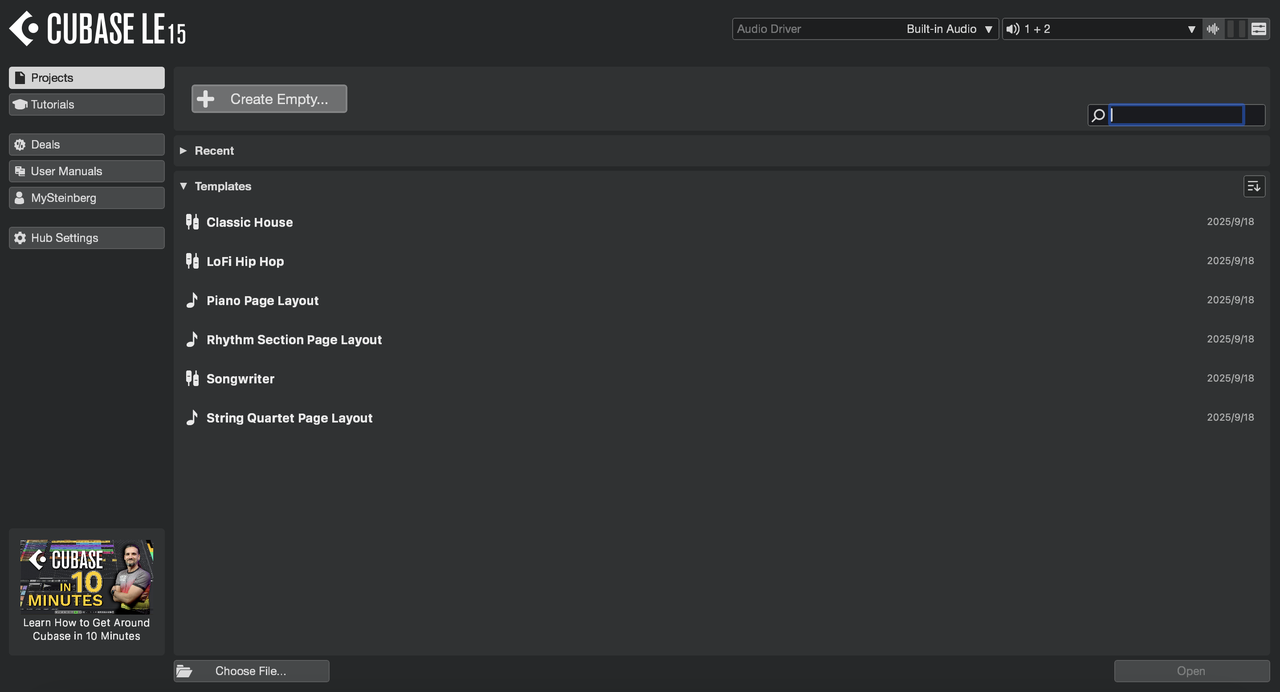


Cubase LE Activation Guide (Desktop Version)


1.Before You Begin
To activate Cubase LE on your computer, you will need:
⚠️ Important: The desktop version of Cubase LE cannot be unlocked through hardware. Unlike the mobile version Cubasis LE (iOS/Android), which is automatically unlocked by connecting the HISONG S1, the desktop version requires activation with a Download Access Code.
2.Download Steinberg Download Assistant (SDA)
Open your web browser and visit:
Download the Steinberg Download Assistant installer for your operating system (Windows / macOS).
3.Sign in to Your Steinberg ID
Launch the Steinberg Download Assistant (SDA).Choose one of the following:
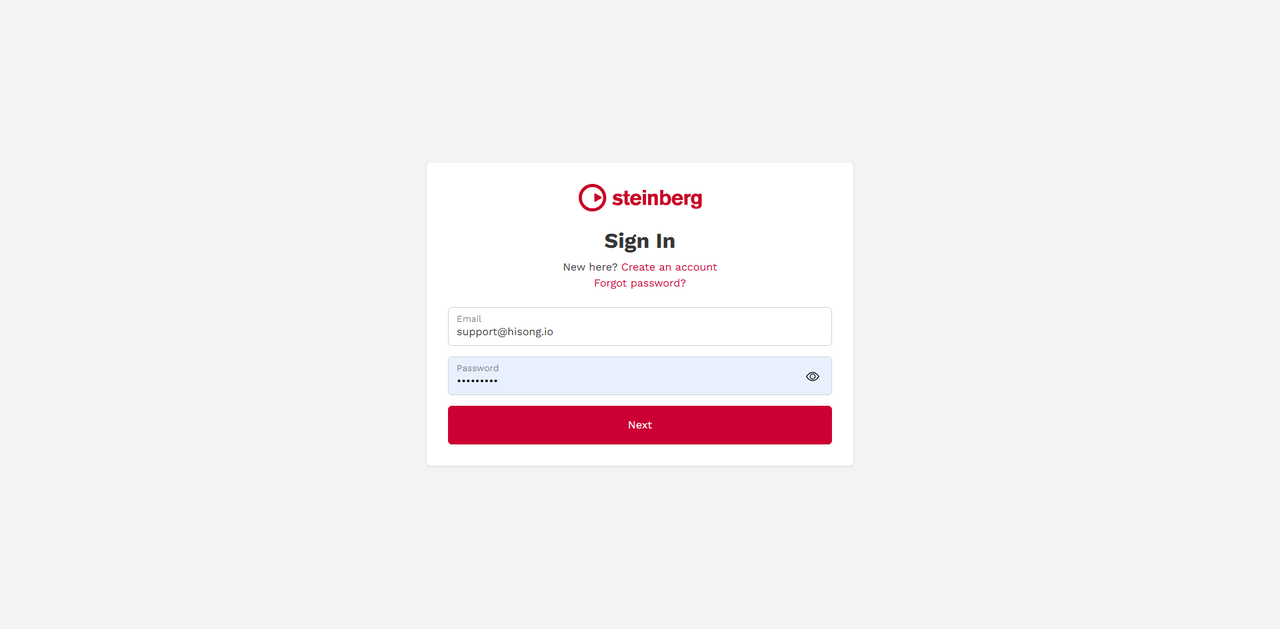
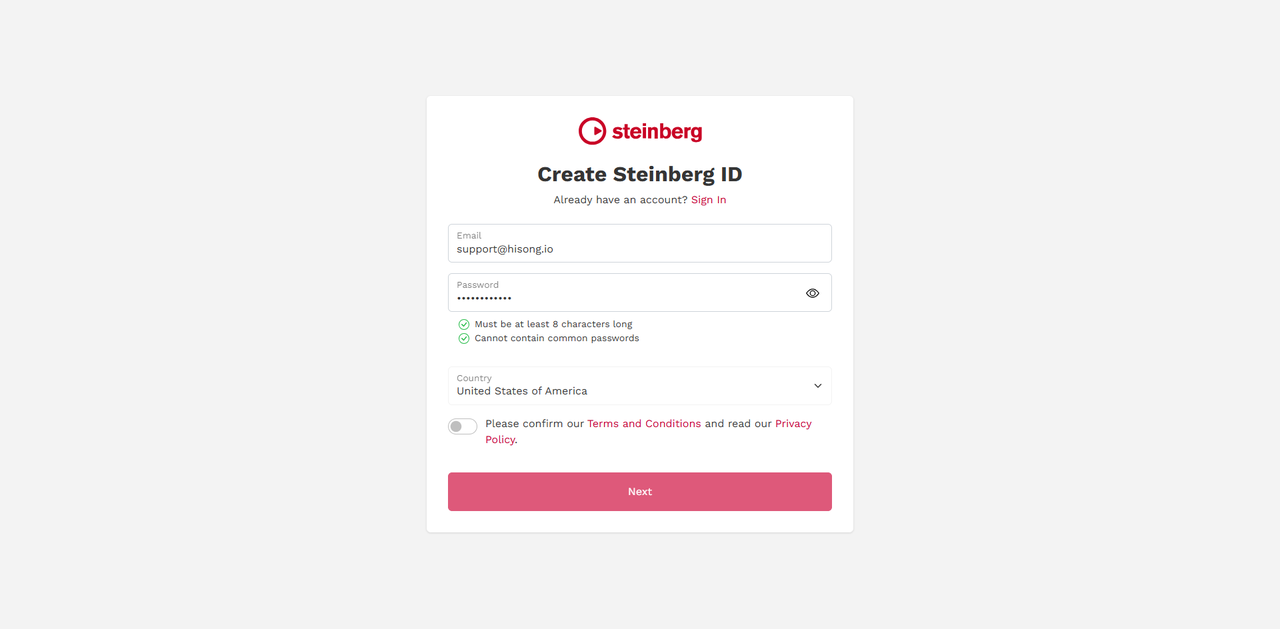
If you create a new account, a verification code will be sent to your email.
You must enter this verification code to complete the registration.
4.Redeem Your Download Access Code (DAC) in SDA
Once signed in:
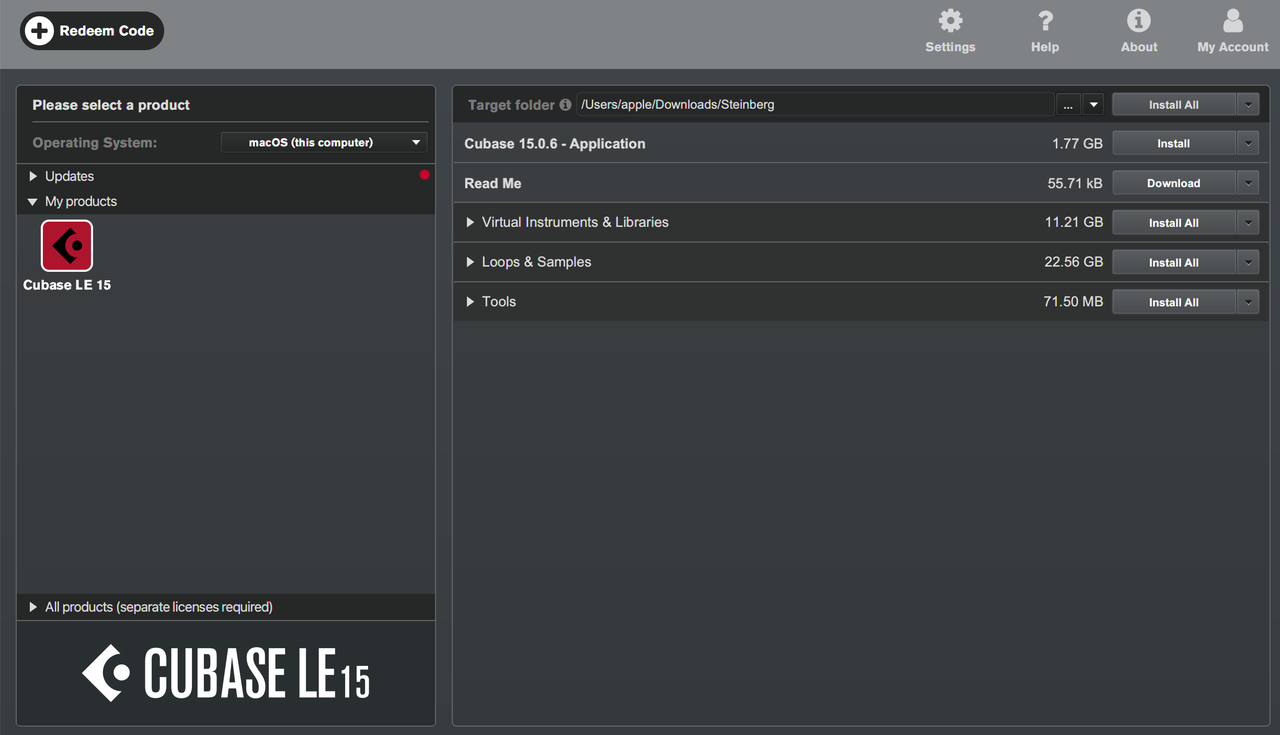
Click Redeem Code in the upper-left corner
Enter your 25-digit Steinberg Download Access Code
SDA will automatically link Cubase LE to your Steinberg account
Cubase LE will now appear under My Products
5.Download and Install Cubase LE
Inside My Products:
Locate Cubase LE 15
Click Install All on the right side
SDA will automatically download and install:
Cubase LE applicationSteinberg Activation ManagerAll required components and libraries
6.Activate Your Cubase LE License
Double-click the Cubase 15 (or Cubase LE) icon to launch the software
On first launch, Cubase will typically open the Steinberg Activation Manager (SAM) automatically
If SAM does not open automatically:
Open it manually:
macOS: Applications → Steinberg Activation Manager
Windows: Start Menu → Steinberg Activation Manager
Inside SAM, click Sign in and follow the on-screen instructions.
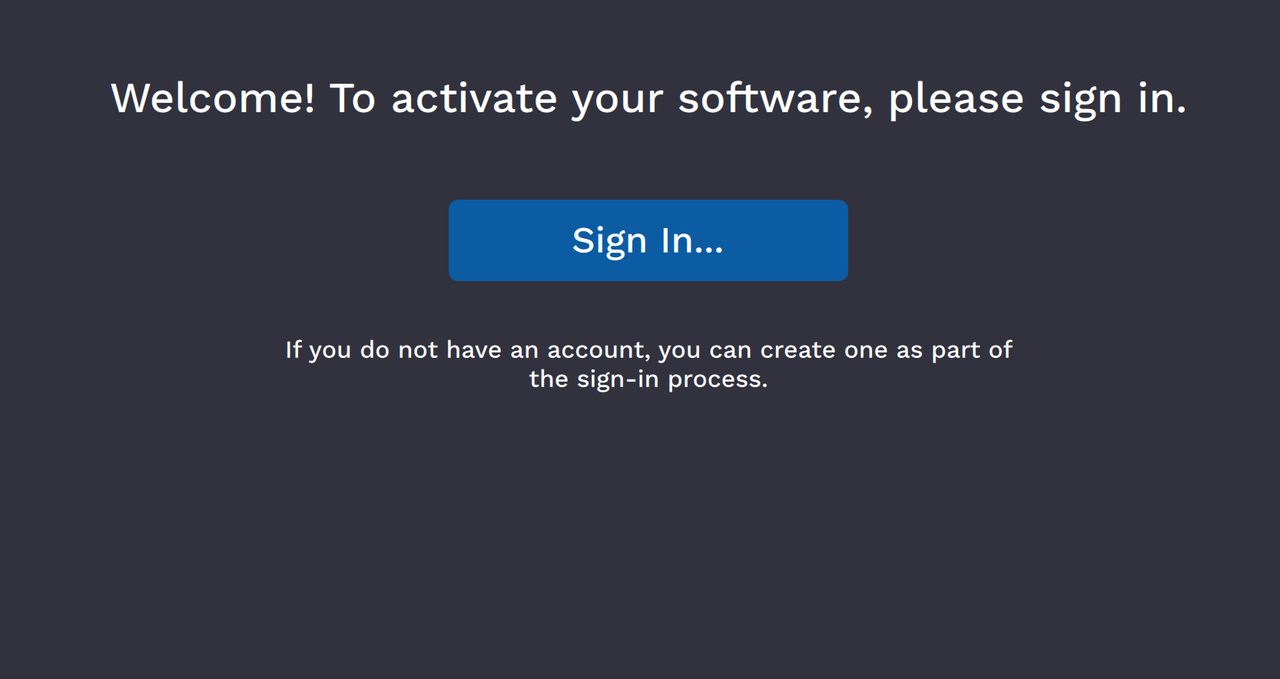
Your web browser will open automatically for Steinberg login authentication
After successful login, your Cubase LE license will activate and be bound to your computer
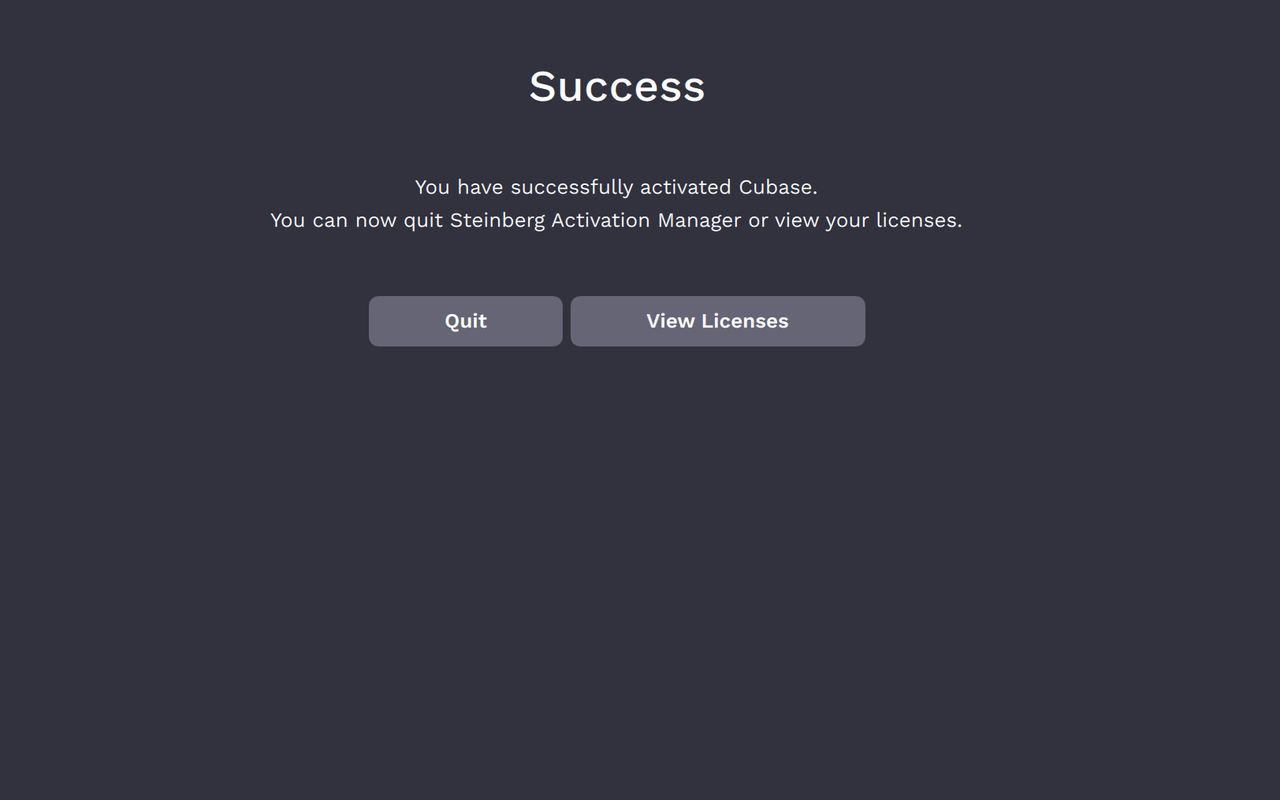
7.Complete Activation / Start Using Cubase LE
You can now launch and use Cubase LE normally.
First-time launch notes:
You must be online for license validation
After activation, Cubase LE can be used offline
Your license allows login on up to 3 different computers (you may switch anytime)
Once Cubase opens the main interface, activation is complete.