





HISONG AirStudio S1 – Cubasis LE Unlock Guide (iOS)


1.Download and Install Cubasis LE
Open the App Store on your iPhone or iPad.
In the search bar, type “Cubasis LE 3” and tap Search.
From the search results, find Cubasis LE 3 (developed by Steinberg Media Technologies GmbH), then tap Get to download and install it.
Note: Cubasis LE 3 is free to download, but some features require an authorized external device (such as HISONG AirStudio S1) to be connected for automatic unlocking.
Launch the Cubasis LE 3 app.
When opening the app for the first time, Cubasis LE may request access to the microphone. Please select “Allow”.
You will then see the startup screen, as shown below.
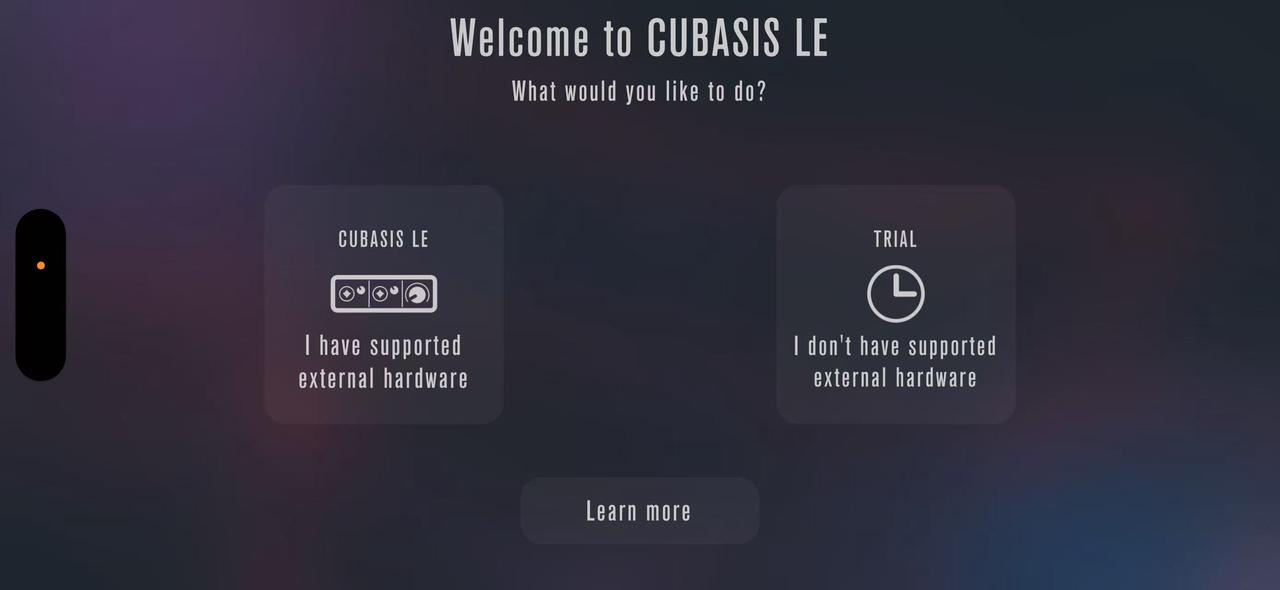
Tap the option on the left: “CUBASIS LE – I have supported external hardware”
Prepare to connect your hardware device.
2.Connecting HISONG AirStudio S1 to Your iOS Device
For Lightning-port devices
(e.g. iPhone 14 and earlier models)
Prepare a USB hub that supports data transfer (with Lightning adapter).
Use a USB-C cable to connect HISONG AirStudio S1 to the USB-C port on the USB hub.
Connect the USB hub to your iPhone or iPad.
Power on the HISONG AirStudio S1 and wait until the indicator light stays on continuously.
For USB-C devices
(e.g. iPad Pro, iPhone 15 series and later)
Use a USB-C to USB-C cable to connect HISONG AirStudio S1 directly to your iOS device.
Power on the HISONG AirStudio S1 and wait until the indicator light stays on continuously.
If the connection is successful, the following screen will appear:
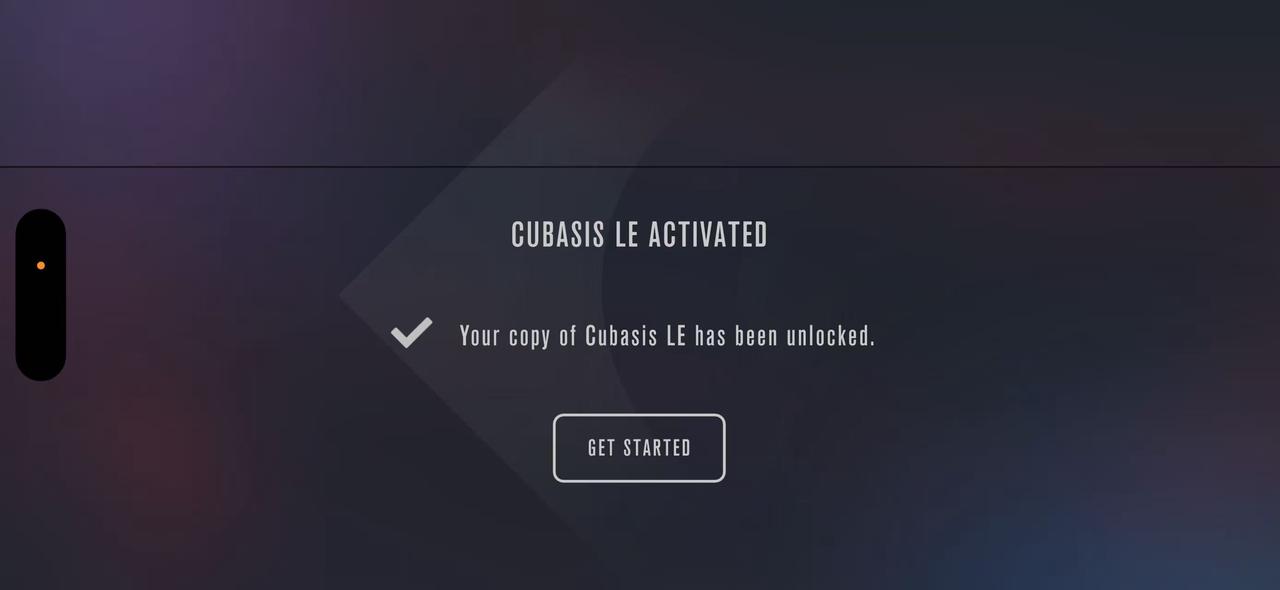
Tap “GET STARTED” to enter the main interface.
Congratulations!
Your HISONG AirStudio S1 has now successfully unlocked Cubasis LE, and you are ready to start recording and creating music on iOS.


