





How to Use RX Mini


(Applicable to Creator Kit 5-in-1 Edition & Master Kit 6-in-1)
Purpose of this page: Help you successfully connect RX Mini with the HISONG AirStudio S1 and your device, and ensure everything is working properly.
▶ Device Pairing & Connection
Step 1|Make sure the S1 is powered on and monitoring properly
-
Set the S1 side switch to Enhanced Dynamic mode [Middle] or Condenser mode [Right] to power it on
-
Put on the monitoring earphones
-
Speak into the S1 microphone and confirm you can hear your voice in the earphones
Step 2|Connect and power the RX Mini
-
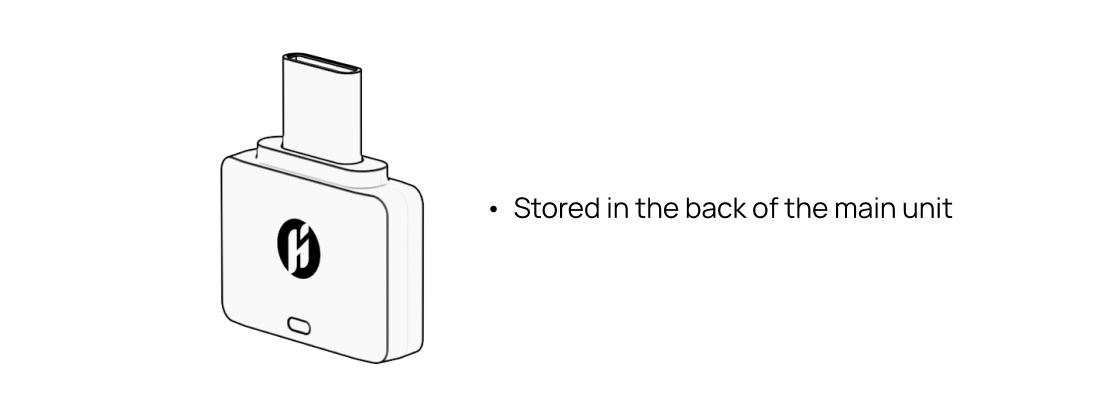
Open the charging case and take out the RX Mini
-
Insert the RX Mini into the device’s USB-C port
-
Supported devices: phone / tablet / computer / action camera
-
Tip 1: Some Android phones require OTG to be enabled manually. After connecting the RX Mini, check whether the indicator light turns on normally.
Tip 2: RX Mini is a USB-C wireless receiver. It can be used with Lightning-port devices via a compliant adapter:
-
Prepare a Lightning-to-USB-C adapter or hub that supports USB audio
-
Insert the RX Mini into the adapter’s USB-C port
-
Connect the adapter to your iPhone / iPad
Step 3|Confirm RX Mini connection
-
The RX Mini indicator light shows solid green
-
This indicates that RX Mini has successfully connected to the S1
-
Once powered on, RX Mini will automatically connect to the S1
-
Open any recording or camera app to start recording
▶ Usage & Status Indicators
-
RX Mini Indicator Light Status
-
Flashing green Indicates that the RX Mini is powered on and actively searching for a previously paired HISONG AirStudio S1. In this state, make sure the corresponding S1 is powered on. The RX Mini will connect automatically, no manual action is required.
-
Solid green Indicates that the RX Mini has successfully established a wireless connection with the HISONG AirStudio S1. Audio transmission is normal and the RX Mini is ready for recording, filming, or live streaming.
-
No indicator light Indicates that the RX Mini is not receiving power or is not properly inserted. Please check that the RX Mini is correctly connected to a device or adapter that supports USB audio power.
Note: Under normal use, as long as the S1 is powered on, the RX Mini will connect automatically
-
How to Quickly Check Whether RX Mini Is Actually Working
Use the following steps for a quick confirmation:
-
Make sure the S1 is powered on and you are wearing the monitoring earphones
-
Insert the RX Mini into your recording or shooting device
-
Speak or sing into the S1 microphone
If any of the following conditions are met, the RX Mini works properly:
-
Clear vocals appear in the recorded video’s audio track
-
Audio is heard normally in a live stream
-
Audio waveforms appear in the recording app
-
Common Issues & Quick Fixes
-
No sound after inserting RX Mini
-
Confirm that the S1 is powered on and monitoring works normally
-
Check that the RX Mini indicator light is solid green
-
Try reinserting the RX Mini or restarting the recording / camera app
-
-
The app does not recognize an external microphone
-
Confirm the input device is set to HISONG S1 RX Mini
-
Confirm that the device supports USB audio input
-
Some Android devices require OTG to be enabled manually
-
Insert the RX Mini before opening the app
-
▶ Usage Scenarios (RX Mini)
RX Mini is a wireless USB audio receiver designed to send audio from the S1 directly into recording or shooting devices. Below are the most common and stable usage scenarios.
Scenario 1|Mobile Shooting / Video Creation
Best for: Short-form videos, vlogs, tutorials, and everyday content creation
Scenario 2|Mobile Live Streaming / Live
-
Insert RX Mini into your phone
-
Use the system camera or any recording app
What you can do
-
Audio is recorded directly into the video file
-
Video and audio are naturally synchronized
-
Ready to use immediately—no post-production syncing required
Performance Best for: Outdoor live streams, singing or performance streams, social platform live broadcasts
-
Insert RX Mini into the live-streaming phone
-
Open the live app and go live directly
What you can do
-
Live streams receive clear, stable vocals and accompaniment
-
No need to manually select a microphone or perform complex setup
-
Can be used together with RX Plus for on-site sound output
Scenario 3|Computer Recording / Content Capture
Best for: Podcast recording, video recording, online meetings, course recording, and general content capture
-
Insert RX Mini into the computer’s USB port using a USB adapter if needed
-
The system automatically recognizes it as an audio input device
What you can do
-
Audio is fed directly into the computer system
-
Driver-free, plug-and-play
-
Compatible with mainstream recording and video software
Scenario 4|Shooting + DAW Synchronized Recording (Advanced)
Best for: Music creation documentation, arrangement / singing / performance recording
-
Use RX Mini for the shooting device
-
Connect the S1 to a computer via USB-C and record into a DAW simultaneously
What you can do
-
The audio in the video = the actual audio recorded in the DAW
-
No post-production syncing or re-shoots needed
-
Complete both creation and content capture in one take
⚠ Common Issues & Troubleshooting
RX Mini does not light up or cannot be used?
Please check the following:
-
Some Android phones require OTG to be enabled manually
-
If OTG is not enabled, the RX Mini will not receive power and will not function


